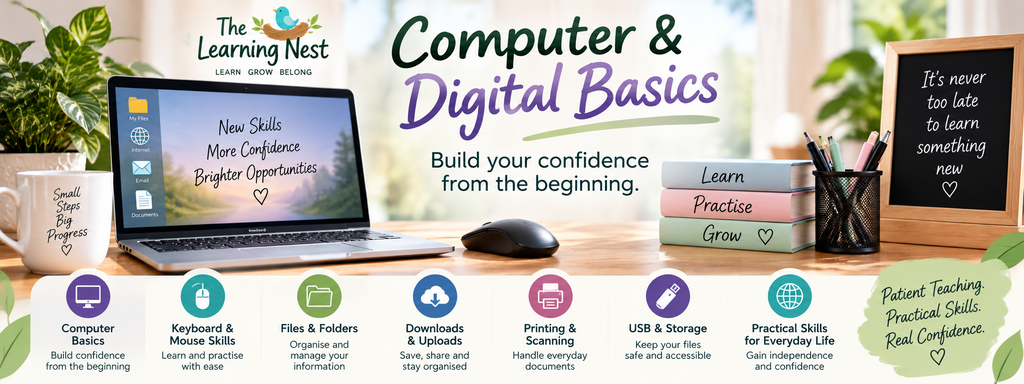
Computer & Digital Basics
🌿 COMPUTER & DIGITAL BASICS
Build your confidence from the beginning.
Do computers sometimes feel confusing?
Perhaps you can do a few basic things but aren’t quite sure what files, folders, downloads or uploads mean. Maybe you rely on someone else when something goes wrong, or you simply want to become more confident using a computer independently.
Computer & Digital Basics is a practical 10-week beginner program designed for children and adults who would like to build strong foundational computer skills.
At The Learning Nest, you don’t need to worry about already knowing the basics.
We’ll start from the beginning, take things step by step and give you plenty of opportunity to practise.
🌱 WHAT YOU’LL LEARN
Throughout the 10-week program, we’ll gradually explore:
- Understanding your computer and its basic parts
- Desktop, taskbar, windows and menus
- Using a mouse or touchpad
- Keyboard skills
- Opening and closing programs
- Switching between programs and windows
- Creating and managing files
- Creating and organising folders
- Saving and finding documents
- Copying, moving, renaming and deleting files
- Understanding common file types
- Downloads and uploads
- Using USB drives and external storage
- Printing basics
- Scanning basics
- Managing photos and documents
- Useful keyboard shortcuts
- Basic computer troubleshooting
- Developing good digital organisation habits
💻 PRACTICAL, REAL-LIFE LEARNING
This course isn’t about memorising computer terminology.
You’ll learn by actually using a computer and completing practical activities.
Activities may include:
- Creating your own folder system
- Saving a document and finding it again
- Renaming files
- Copying and moving files between folders
- Downloading and locating a file
- Uploading a document
- Saving files to a USB drive
- Organising photographs
- Printing a document
- Practising useful keyboard shortcuts
- Managing several open windows
- Learning what to check when something doesn’t seem to be working
🌿 WHO IS THIS COURSE FOR?
Computer & Digital Basics may be suitable for:
- Absolute beginners
- Children developing practical computer skills
- Homeschool students
- Adults learning computer skills for the first time
- Adults returning to work or study
- Learners refreshing skills they haven’t used for some time
- People who rely on family or friends for basic computer tasks
- Learners who find files, folders and downloads confusing
- Anyone who would like to become more independent using a computer
- Learners who prefer patient, step-by-step instruction
No previous computer experience is required.
💜 LEARN WITHOUT THE PRESSURE
Everyone begins somewhere.
There is no expectation that learners already understand computer terminology or know where everything is located.
Questions are encouraged.
Skills can be demonstrated again.
There is time to practise.
Mistakes are part of learning.
Rather than simply showing you which buttons to press, the aim is to help you understand what you are doing so you can gradually become more confident working independently.
🌱 YOUR 10-WEEK LEARNING JOURNEY
Week 1 – Getting to Know Your Computer
Week 2 – Mouse, Touchpad & Keyboard Skills
Week 3 – Desktop, Windows, Programs & Navigation
Week 4 – Understanding Files & Folders
Week 5 – Saving, Finding, Moving & Organising Files
Week 6 – Downloads, Uploads & Common File Types
Week 7 – USB Drives, External Storage & Digital Organisation
Week 8 – Printing, Scanning, Photos & Documents
Week 9 – Useful Shortcuts & Basic Troubleshooting
Week 10 – Practical Digital Skills, Review & Confidence Building
🌿 COURSE DETAILS
Course: Computer & Digital Basics
Level: Absolute Beginner
Duration: 10 Weeks
Day: Thursday
Time: 5:30pm to 7:30pm
Session Length: 2 Hours
Location: Rooty Hill
Age Group: Adults
Learning Style: Small-group, practical and step-by-step learning
Experience Required: None – absolute beginners are welcome
💻 What to bring…………….
Where possible, learners are encouraged to bring their own laptop.
Learning on your own computer means you can become familiar with the device you will continue using outside the classroom.
If you already use a USB drive, you may also be asked to bring it during relevant weeks of the course.
🌱 By the enf of the course……………..
Learners should have greater confidence using a computer independently and understand how to:
✓ Navigate around their computer
✓ Use a mouse, touchpad and keyboard
✓ Open, close and switch between programs
✓ Create and organise folders
✓ Save and locate files
✓ Rename, copy, move and delete files
✓ Understand common file types
✓ Download and upload files
✓ Use a USB drive
✓ Organise basic photos and documents
✓ Understand basic printing and scanning
✓ Use several helpful keyboard shortcuts
✓ Try simple troubleshooting steps
✓ Keep digital information more organised
💜 “Help! What did I do?
Computers don’t always behave the way we expect — and learning what to do when something goes wrong is an important digital skill too.
Throughout the program, we’ll explore common beginner problems such as:
- “I saved my file but I can’t find it.”
- “My window disappeared.”
- “I downloaded something — where did it go?”
- “I accidentally deleted something.”
- “My program has stopped responding.”
- “I can’t find the program I was using.”
- “My USB drive isn’t showing where I expected.”
- “I’ve got too many windows open!”
Instead of being afraid of making mistakes, learners will gradually develop some simple strategies for working out what happened and what they can try next.
🌿 Where to from here?
Finished this program? Your learning doesn’t have to stop here.
Computer & Digital Basics provides a strong foundation for continuing into other Learning Nest programs.
Possible next learning steps include:
- Internet, Email & Online Safety
- Microsoft Word for Beginners
- Microsoft Excel for Beginners
As new programs are introduced, learners can continue building their digital skills one step at a time.
💜 Ready to start learning?
If computers have always felt confusing, or you simply want to fill in some gaps in your digital knowledge, you are welcome to start from the beginning.
Build practical computer skills in a patient and supportive environment where questions are encouraged and learning happens at your own pace.
🌿 Learn • Grow • Belong
